DOCS / 01

How the system works

Connect a phone or laptop to Wi-Fi. The router first waits for approval of the new device. It then applies the rules of the assigned zone: some connections are allowed, others are stopped.
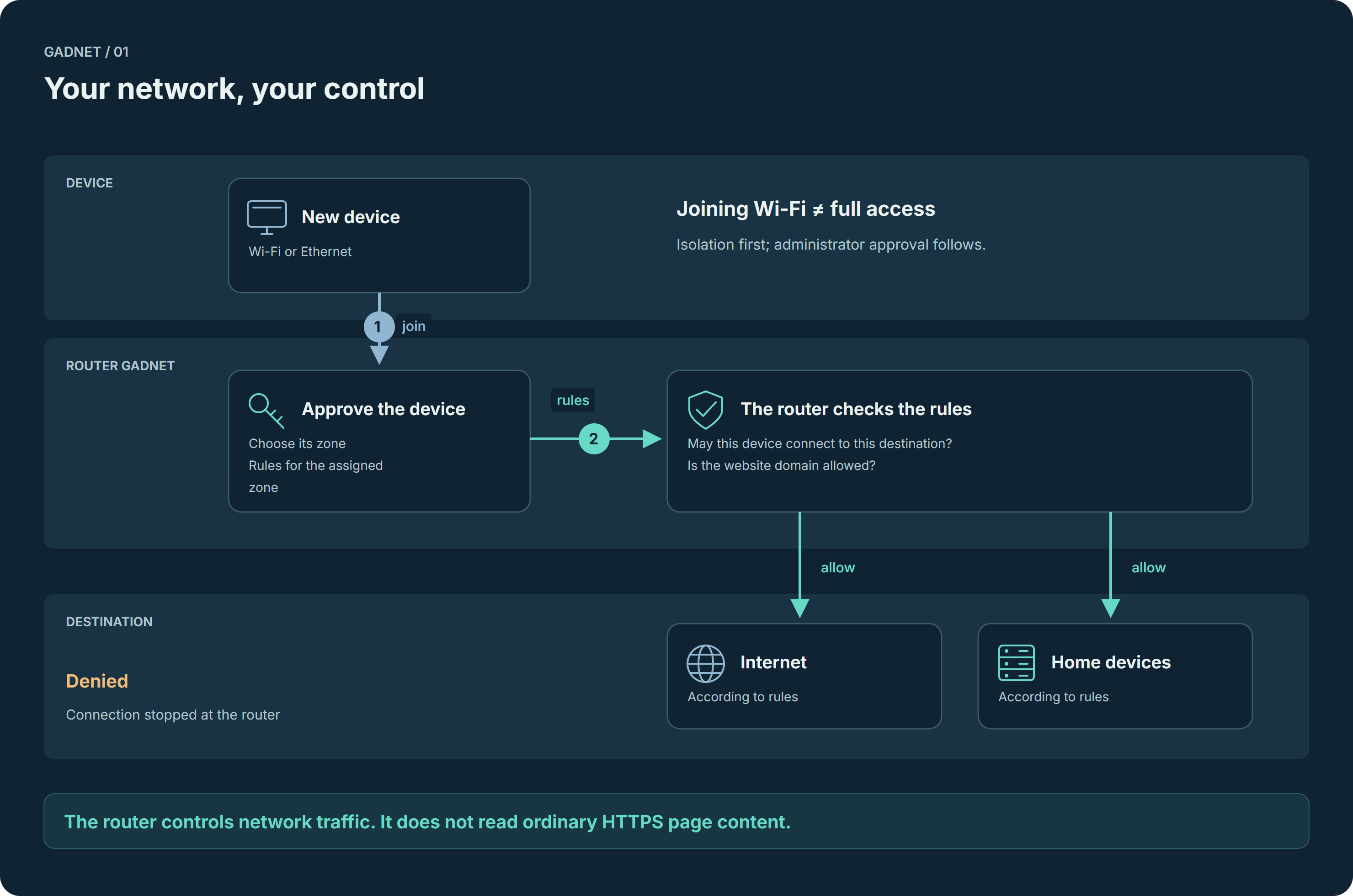
How the system works — process described below
On mobile, scroll the diagram sideways.Open PNG and zoom ↗
IN PRACTICE

a guest phone can reach the internet, but not a household computer. Assign the devices to different zones and configure the permitted directions.

What happens technically

  1. Join the network

    New devices enter Isolation. Joining Wi-Fi alone does not grant access to other devices.

  2. Assign access

    The administrator approves a device and assigns a zone. Each zone allows or denies every direction to the other zones; rules with ports are set per device.

  3. Enforce rules

    The firewall controls network traffic; the DNS resolver applies configured profiles and lists. The panel shows devices, zones and events.

Terms and mechanisms

Zone
A group of devices with shared access rules. The administrator sets access between zones; different zone names do not replace configuration.
Firewall
Enforces network connection rules. Zone rules specify direction; device rules can specify a target and port.
DNS
The resolver turns domain names into addresses. Selected lists and profiles can block domains, but not individual posts or HTTPS page content.
HTTPS
Encrypts the browser-to-website connection. Content filtering is a separate GADNET Browser function; the router does not decrypt ordinary website HTTPS traffic.

Scope and limitations

Segmentation applies between zones. Some directions are open by default (trusted to IoT and guest, admin to every zone), and devices inside a zone other than Isolation can reach each other unless client isolation is enabled for that zone. Ordinary HTTPS website traffic is not decrypted by the router.
Full Docs chapter →

DOCS / 02

Creating the first administrator

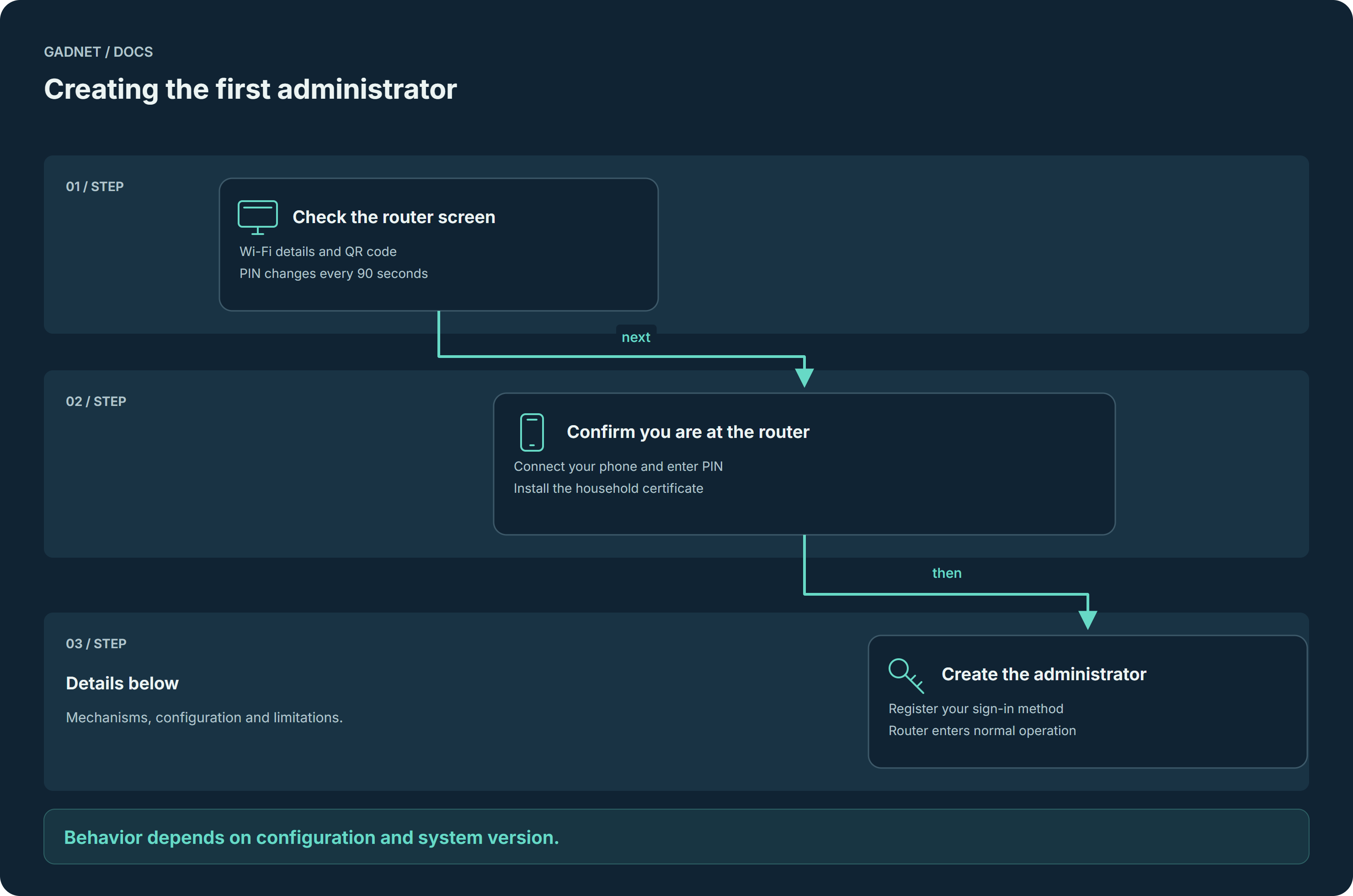
Read the setup Wi-Fi details and PIN on the router screen. Your phone guides you through trusting the router and creating the first administrator.

Creating the first administrator — process described below
On mobile, scroll the diagram sideways.Open PNG and zoom ↗
IN PRACTICE

Setting up a new router: connect a monitor, join the setup Wi-Fi and confirm your presence with its PIN.

What happens technically

  1. Reach the setup portal

    A monitor connected to the router shows the setup Wi-Fi name, password and QR code, and a six-digit PIN that changes every 90 seconds. Join that Wi-Fi or plug in Ethernet; the phone’s network sign-in sheet opens the portal.

  2. Prove you are at the router

    Enter the PIN from the screen; five wrong attempts lock the address for three minutes. Download the household Root CA, which the router created itself at first start, then continue in the HTTPS wizard.

  3. Create the credential

    Register a passkey with user verification or, on a phone without one, a device certificate protected by a PIN. The router accepts the certificate only after its setup probe sees the phone present it from the system keystore. Then the router restarts.

Terms and mechanisms

Root CA
The household certificate authority is created on the router and establishes trust in its services.
Passkey / certificate
A passkey requires user verification. The setup alternative is a device certificate protected by a PIN.
Portal / HTTPS
The port 80 portal starts setup. After the PIN is accepted, the wizard uses HTTPS on port 8443.

Scope and limitations

The PIN is shown only on the HDMI screen; without a monitor it needs root access to the router. Before an administrator exists, LAN devices reach the internet except DNS-over-TLS (853) and HTTPS from devices that have not entered the PIN. From the moment the account exists, new devices go to Isolation and the wizard closes. The setup Wi-Fi stays on until the main Wi-Fi is configured in the panel. A recovery phrase is created later in the panel, not in the wizard.

Full Docs chapter →

DOCS / 03

How updates work

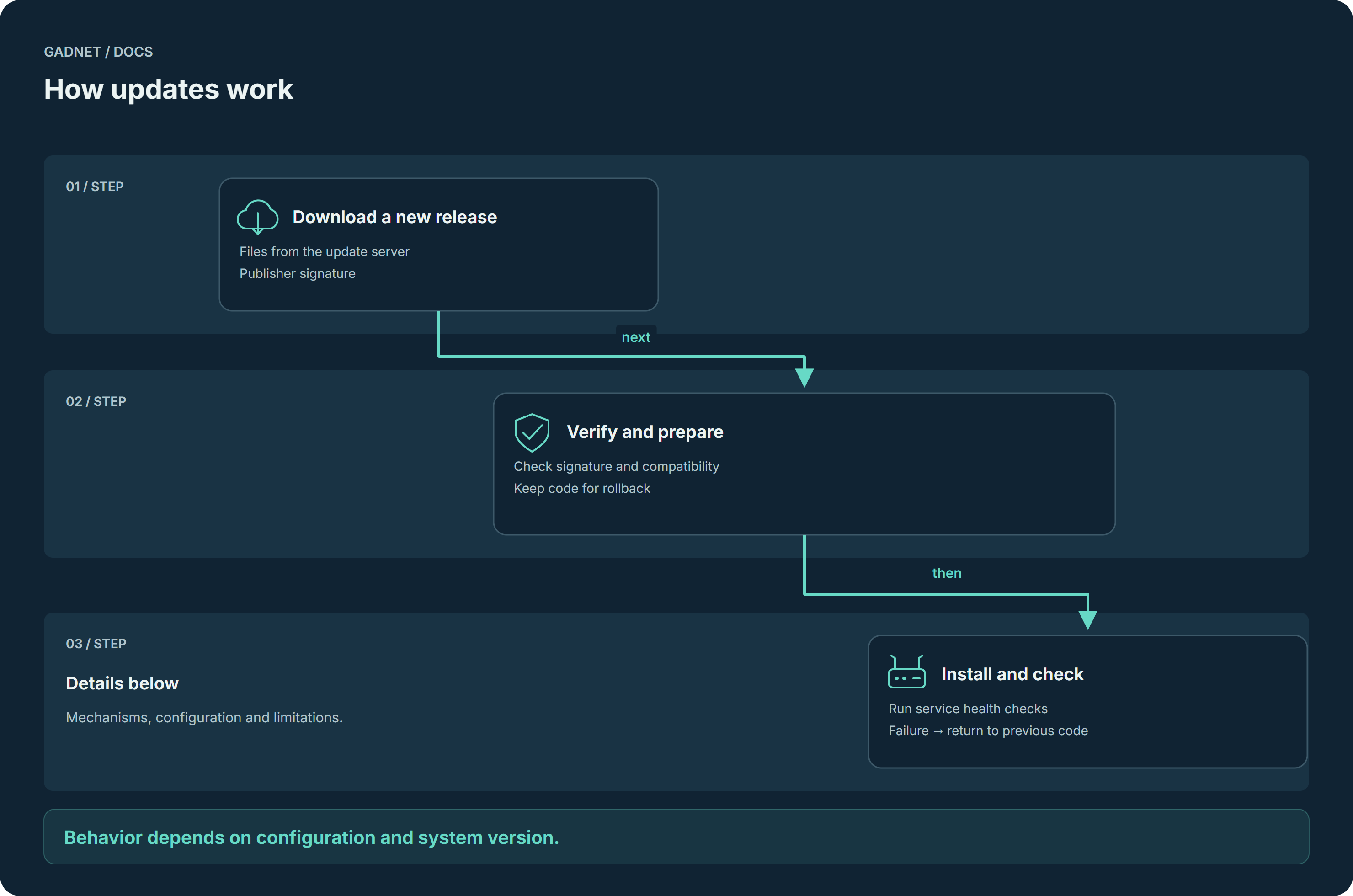
The router checks who signed the update and whether it fits the system. It prepares a way back, installs the change and checks its services.

How updates work — process described below
On mobile, scroll the diagram sideways.Open PNG and zoom ↗
IN PRACTICE

An overnight update ends with health checks. If services fail, the router returns to the previous code.

What happens technically

  1. Verify the release

    The router checks the manifest signature against a trusted key. Control of the download server alone does not allow an attacker to sign a valid release.

  2. Prepare the change

    Bundle integrity and Python dependency compatibility are checked. A changed requirements.lock needs an offline update. Operator settings live outside the replaced application tree.

  3. Confirm health

    The default window is 03:10–03:50 on the router clock. Services are checked after installation; failures trigger rollback and an interrupted operation is recovered at boot.

Terms and mechanisms

Manifest / SHA-256
The manifest describes a release; SHA-256 checks bundle integrity.
SLH-DSA
The publisher signature is verified with a trusted key. File-server access alone cannot sign a release.
Rollback
Returns to earlier code after installation or health-check failure. It does not replace configuration backups.

Scope and limitations

GADNET code, Alpine packages and browser installers have separate update paths. Alpine packages come from Alpine repositories. Kernel, bootloader, musl and busybox require the new-image path.

Full Docs chapter →

DOCS / 04

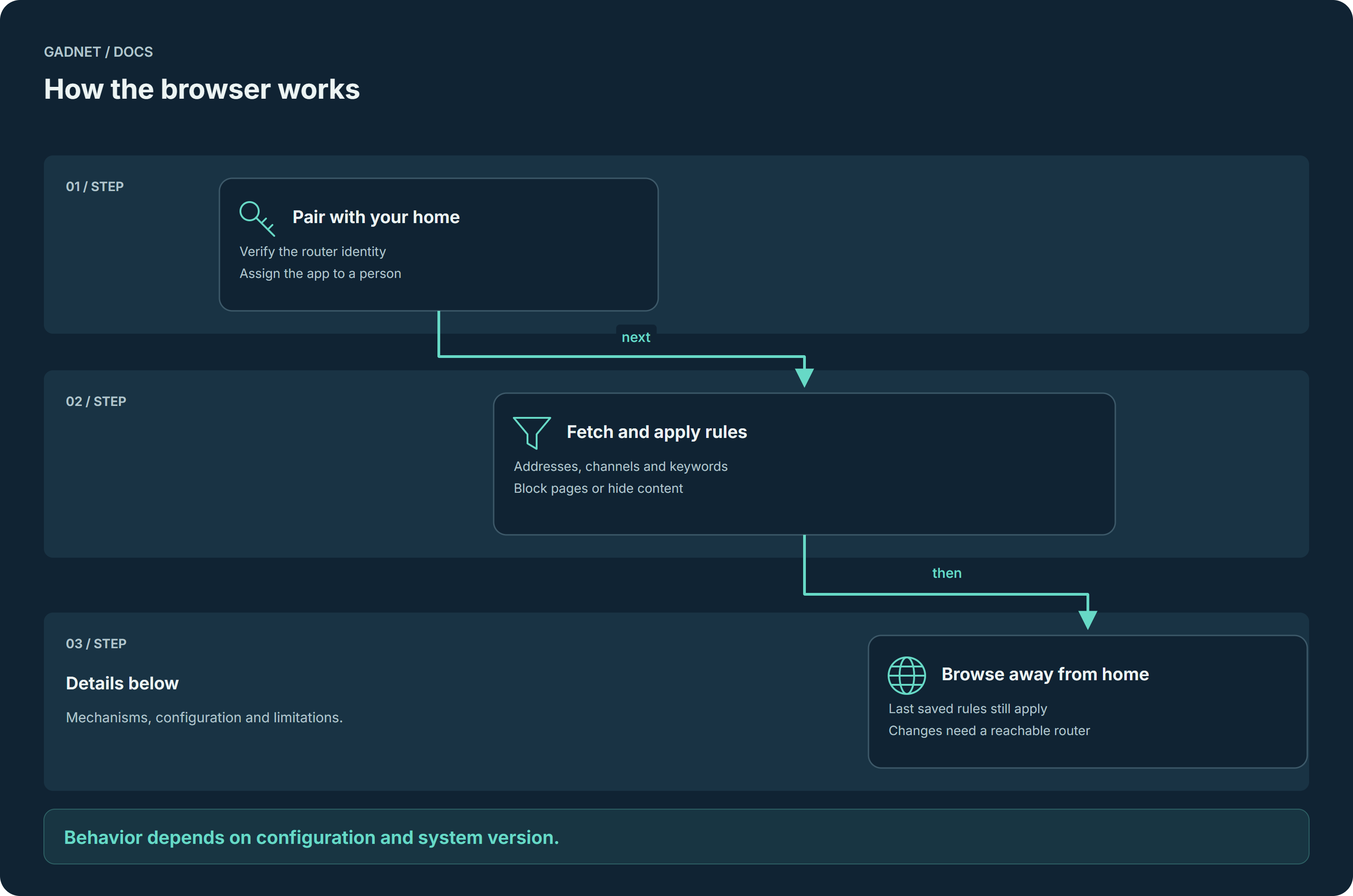
How the browser works

The browser learns your household rules and applies them when opening websites. It can block addresses or hide matching content. Away from home, it keeps the last saved rules.

How the browser works — process described below
On mobile, scroll the diagram sideways.Open PNG and zoom ↗
IN PRACTICE

A guardian chooses channel and keyword rules. GADNET Browser applies them to the person’s profile; a blocked page can be sent to the guardian for approval.

What happens technically

  1. Trust the right router

    Setup pins the approved Root CA fingerprint. Pairing binds the app to a person and key; DPoP proofs demonstrate possession of that key.

  2. Apply household rules

    The app fetches a policy and receives change events. It evaluates domains, URLs, creators and keywords, blocking pages or hiding matching content.

  3. Keep rules away from home

    At home, web traffic goes through a local proxy and router gateway. Away, the app keeps enforcing its last saved rules. Rule changes and guardian replies need a reachable router; on Windows the vault can also be unlocked through the remote relay.

Terms and mechanisms

Policy
Rules fetched from the router for a person. SSE events notify the app of changes.
DPoP / pinned CA
The app key proves its identity; an approved CA fingerprint identifies the correct router.
Local filtering
The browser engine evaluates URLs, metadata and page text. It does not automatically cover other apps.

Scope and limitations

Content filtering applies to GADNET Browser. Router DNS rules do not replace content filtering in other apps. TPM / StrongBox availability depends on hardware; software variants also exist.

Full Docs chapter →

DOCS / 05

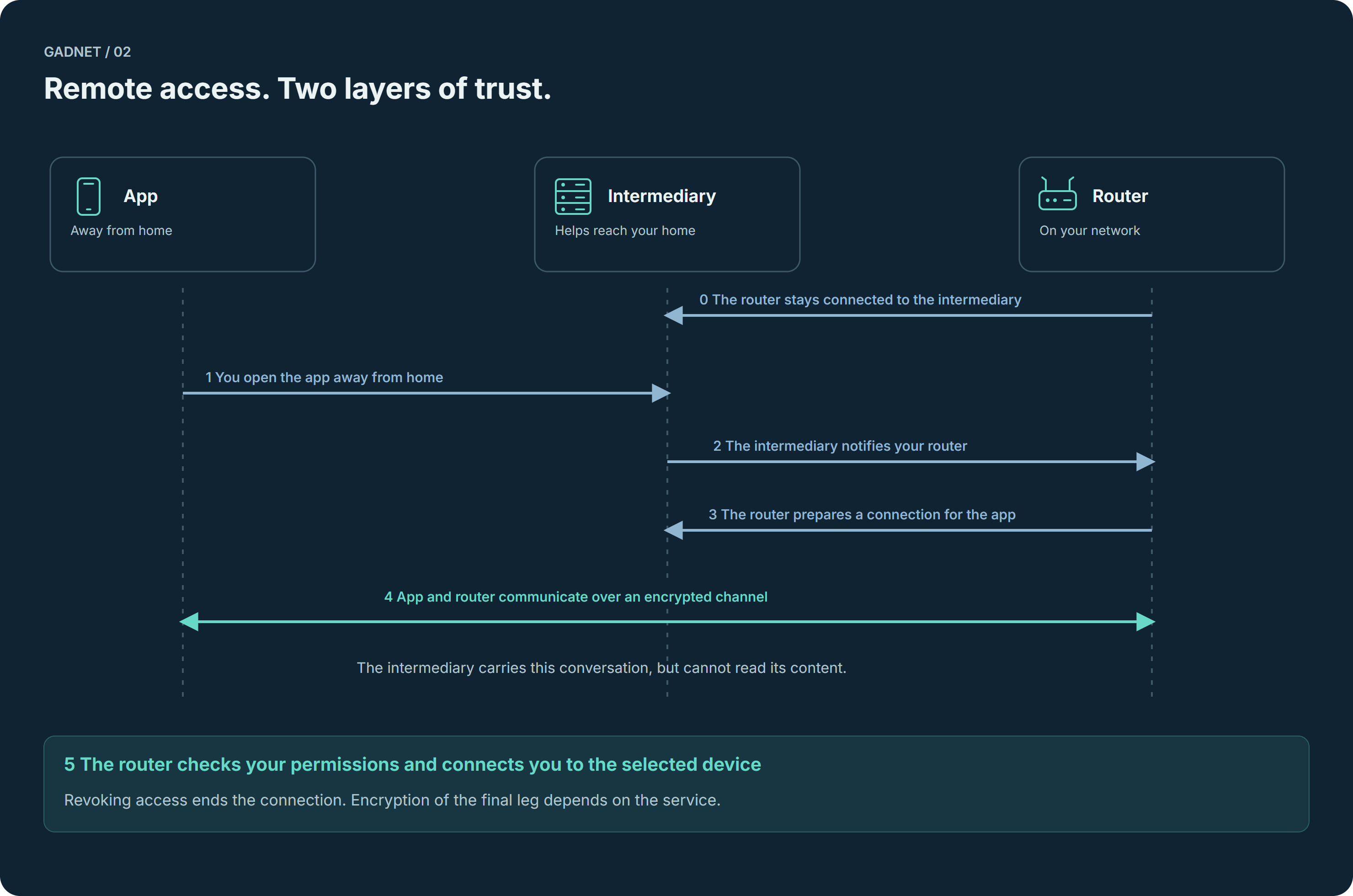
Remote access through a relay

You are away from home and want to connect to your home storage, for example. An intermediary helps the app reach your router. The router checks who you are and which device you may access; the intermediary only carries the encrypted conversation between the app and router.

Remote access through a relay — process described below
On mobile, scroll the diagram sideways.Open PNG and zoom ↗
IN PRACTICE

a previously paired app connects to a home NAS on an allowed port. This does not grant access to the entire network or the administrator panel.

What happens technically

  1. Connect the transport

    The router maintains an outbound WSS channel. The relay joins the app to its connector without an inbound listening port on the router WAN.

  2. Authorize access

    TLS 1.3 runs between the app and router inside WSS. The router checks identity, DPoP and a passkey with user verification, then issues a resource-specific grant.

  3. Keep checking the session

    The router resolves the target from its DHCP lease and zone assignment, then repeats access checks. Revocation ends the stream. /stream serves a resource; /mux carries multiple TCP connections to allowed device ports.

/stream serves a resource; /mux carries multiple TCP connections to allowed device ports. Targets are permitted private RFC1918 addresses; router addresses and the administrator panel are excluded.

Terms and mechanisms

WSS
WebSocket over TLS. The app connects to /client on the relay, while the router maintains an outbound /connector. After receiving the stream ID, the router opens a one-time /attach. This TLS layer ends at the VPS.
TLS 1.3
A separate TLS connection runs inside the transport, between app and router. The app uses the pinned household Root CA. The relay sees transport metadata, but not the content of this inner connection.
DPoP / passkey
DPoP proves possession of the paired app key. A passkey with user verification authenticates the person. Their private GADNET code is also required when configured.
Grant / TCP
A grant restricts access to a selected resource. The router checks MAC, zone and the current DHCP lease; it opens TCP only to the allowed target and ports. Repeated permission checks allow streams to be closed when access is revoked.

Scope and limitations

This describes local implementation, not a deployed relay in every installation. The VPS sees transport metadata. Inner TLS ends at the router; encryption to the LAN resource depends on its protocol. This tunnel does not expose the admin panel.

Full Docs chapter →

DOCS / 06

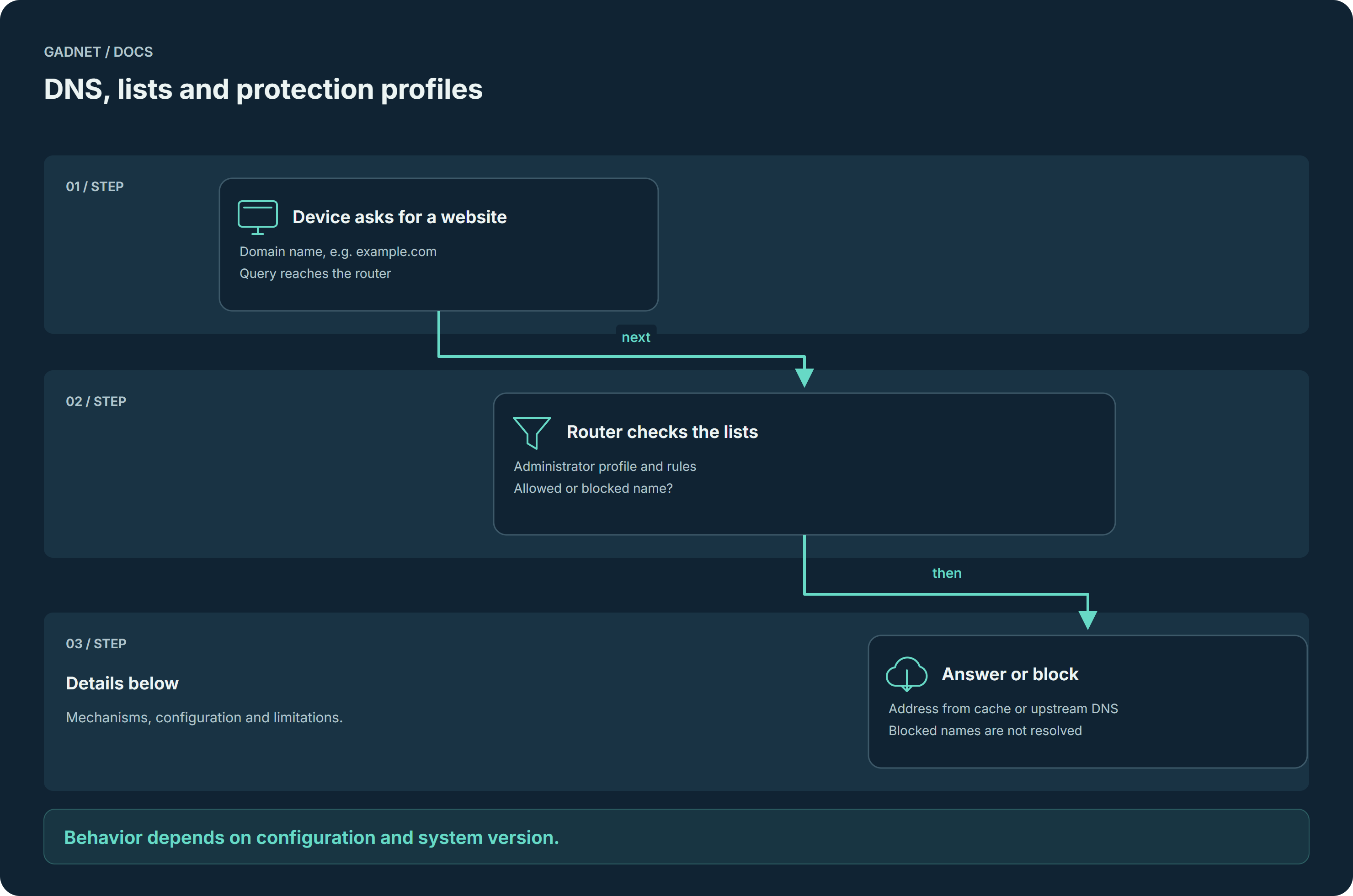
DNS, lists and protection profiles

Before opening a site, a device asks for its domain address. The router checks selected lists and the protection profile, then answers or blocks the name.

DNS, lists and protection profiles — process described below
On mobile, scroll the diagram sideways.Open PNG and zoom ↗
IN PRACTICE

A list blocks an advertising domain. The phone gets no address for it, but DNS cannot select individual videos or posts.

What happens technically

  1. Choose lists

    The administrator adds advertising, tracking or malicious-domain lists. Do not assume all categories are blocked by default.

  2. Assign a profile

    A rule can target a zone, a device, a person, a role or every client. Guest devices and children’s devices can use different rules.

  3. Encrypt upstream queries

    Allowed queries can be served from cache. The upstream connection uses DNS-over-TLS by default; the upstream resolver still knows the names it resolves.

Terms and mechanisms

NXDOMAIN
A “name does not exist” answer for a blocked domain and its subdomains.
Cache / DoT
Cache stores earlier answers. DNS-over-TLS encrypts queries to the upstream resolver.
Custom DNS
A device using its own encrypted DNS can bypass router lists unless blocking it is enabled.

Scope and limitations

DNS acts on domains: a blocked name, with its subdomains, is answered as non-existent (NXDOMAIN). It does not see page text, individual videos or posts; that layer is handled by GADNET Browser. Rules apply once an administrator exists and while the policy resolver answers; otherwise DNS keeps working without them. A device using its own encrypted DNS bypasses the router’s lists unless blocking it is enabled.

Full Docs chapter →

DOCS / 07

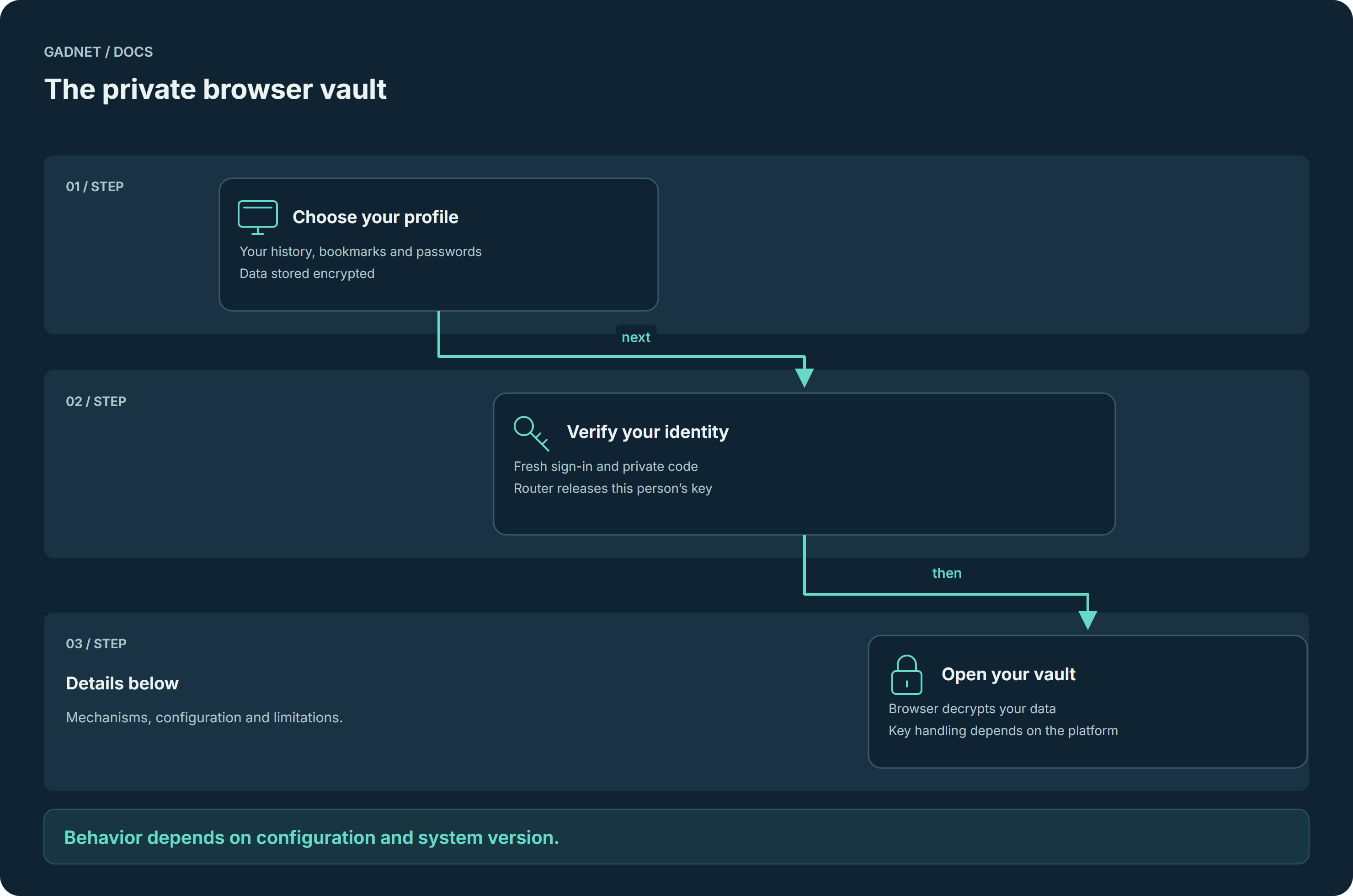
The private browser vault

History, bookmarks and passwords are saved in the person’s encrypted vault. Unlocking requires identity verification and release of the key by the router.

The private browser vault — process described below
On mobile, scroll the diagram sideways.Open PNG and zoom ↗
IN PRACTICE

On a shared Windows computer, household members use separate profiles. A restart locks the vault while browsing rules remain active.

What happens technically

  1. Separate people

    Windows uses separate profiles, app keys and website-data partitions. Android associates the browser with one person per phone.

  2. Open your own data

    Unlock needs an app-key proof (DPoP), a fresh sign-in with a passkey or certificate and PIN, and the person’s private GADNET code. A guardian code opens only the vault of a household-managed person who has not set a private code yet, never an adult’s.

  3. Browse with a locked vault

    On Windows a restart locks the data while rules keep working; history visits made meanwhile are sealed to an X25519 public key and merged at the next unlock. Android keeps the key sealed in Android Keystore, usable only while the phone is unlocked, and reopens the vault at launch.

Terms and mechanisms

AES-256-GCM / HKDF
HKDF derives a key; AES-256-GCM encrypts data and checks integrity.
Windows / Android
Windows holds the key in memory; restart locks the data. Android seals the key in Android Keystore.
X25519
With the Windows vault locked, visits can be sealed to a public key and merged after unlocking.

Scope and limitations

The router keeps one vault key per person, shared by all of that person’s paired apps: revoking an app keeps it, deleting the account erases it, and a phone that stays offline keeps its sealed copy. The vault protects stored data; it does not isolate an active session from software running as the same operating-system user.

Full Docs chapter →

DOCS / 08

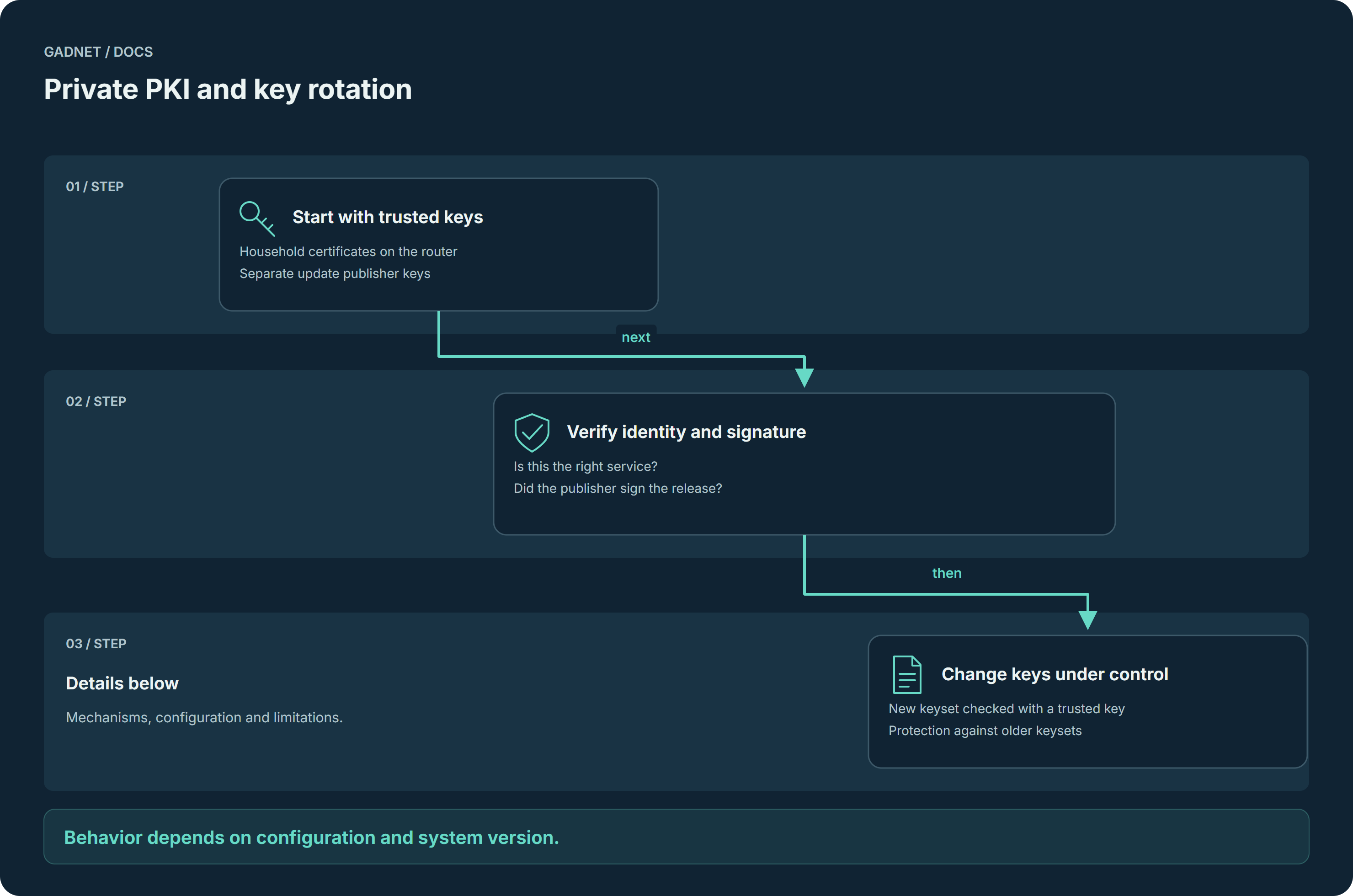
Private PKI and key rotation

Your home has its own certificates; the update publisher has separate signing keys. During key changes, the router checks that new trust follows from an already trusted key.

Private PKI and key rotation — process described below
On mobile, scroll the diagram sideways.Open PNG and zoom ↗
IN PRACTICE

A publisher key change does not mean trusting any file from the internet: the new keyset must pass router verification.

What happens technically

  1. Establish household trust

    The router creates its own Root and Intermediate CA on the device. The app pins the approved fingerprint; the admin panel, devices and paired apps use certificates issued by that CA.

  2. Protect the right connections

    The admin panel and the update client offer hybrid post-quantum key exchange (X25519MLKEM768, SecP256r1MLKEM768) to compatible peers. This does not change encryption on every website.

  3. Rotate the publisher key

    A new update key set must be signed by an already trusted key. Its sequence prevents replay; it cannot remove the final usable key. A rescue path, on by default, lets the administrator adopt a key set after comparing its fingerprint.

Terms and mechanisms

Root / Intermediate CA
The router creates household certificate authorities. They do not sign GADNET releases.
Keyset
Update keys signed by an already trusted key. Sequence numbers protect against replay of an older keyset.
Hybrid key exchange
The panel and update client offer X25519MLKEM768 and SecP256r1MLKEM768 to compatible peers. This does not change all internet encryption.

Scope and limitations

The household Root CA does not sign GADNET releases. Revocation works for clients checking certificate status; post-quantum compatibility also depends on the client.

Full Docs chapter →

DOCS / 09

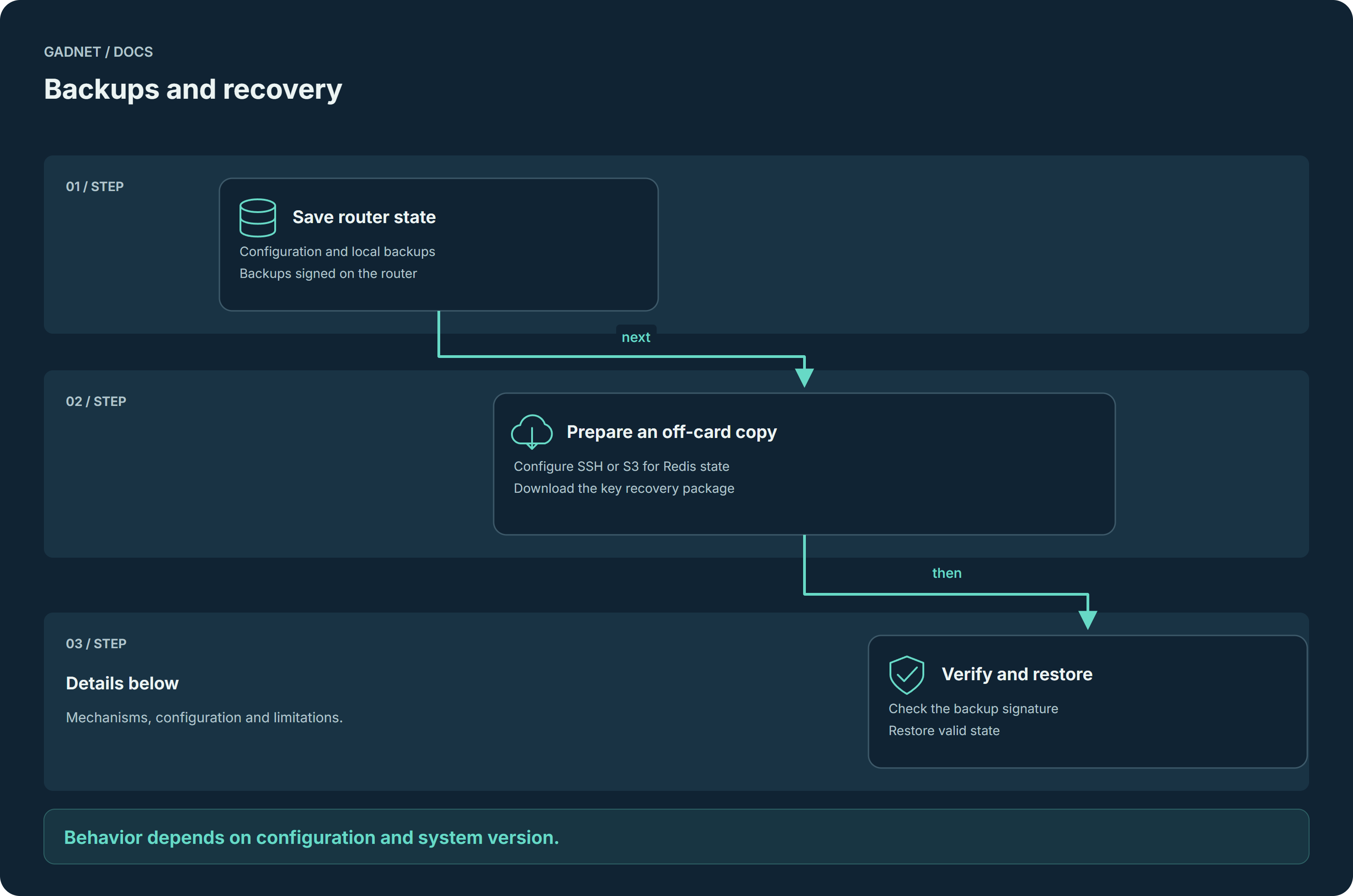
Backups and recovery

The router saves configuration and creates backups. You can configure an external destination for Redis state. Recovery checks the backup signature before use.

Backups and recovery — process described below
On mobile, scroll the diagram sideways.Open PNG and zoom ↗
IN PRACTICE

A failed card should not take your only copy. Redis state can be sent off-device; keys and full configuration require a separate recovery package.

What happens technically

  1. Persist configuration

    LBU commits configuration daily. A backup at 02:45, before the update window, keeps local copies of configuration, CA, DHCP, DNS and Redis state on the card.

  2. Copy off the device

    The administrator can configure an SSH or S3 destination for the Redis state: zones, policies and devices. system.conf and the CA keys leave the router only in the encrypted key-recovery bundle the administrator downloads. A copy on the same card does not protect against failure of the storage device.

  3. Verify before restoration

    Backups are signed with SLH-DSA. The restore tool rejects an invalid signature and refuses an unsigned copy unless explicitly told to accept it.

Terms and mechanisms

LBU / snapshot
LBU persists configuration. Local snapshots include CA, DHCP, DNS and Redis state.
SSH / S3
Administrator-configured destinations for Redis state. They do not automatically include system.conf or CA keys.
Signature / privacy
SLH-DSA verifies a backup; it does not encrypt it. Offsite confidentiality depends on the destination.

Scope and limitations

A signature is not encryption. The router does not itself encrypt off-device backups; the configured destination must provide confidentiality. If the signing key cannot be read, the backup is written unsigned with a warning.

Full Docs chapter →

DOCS / 10

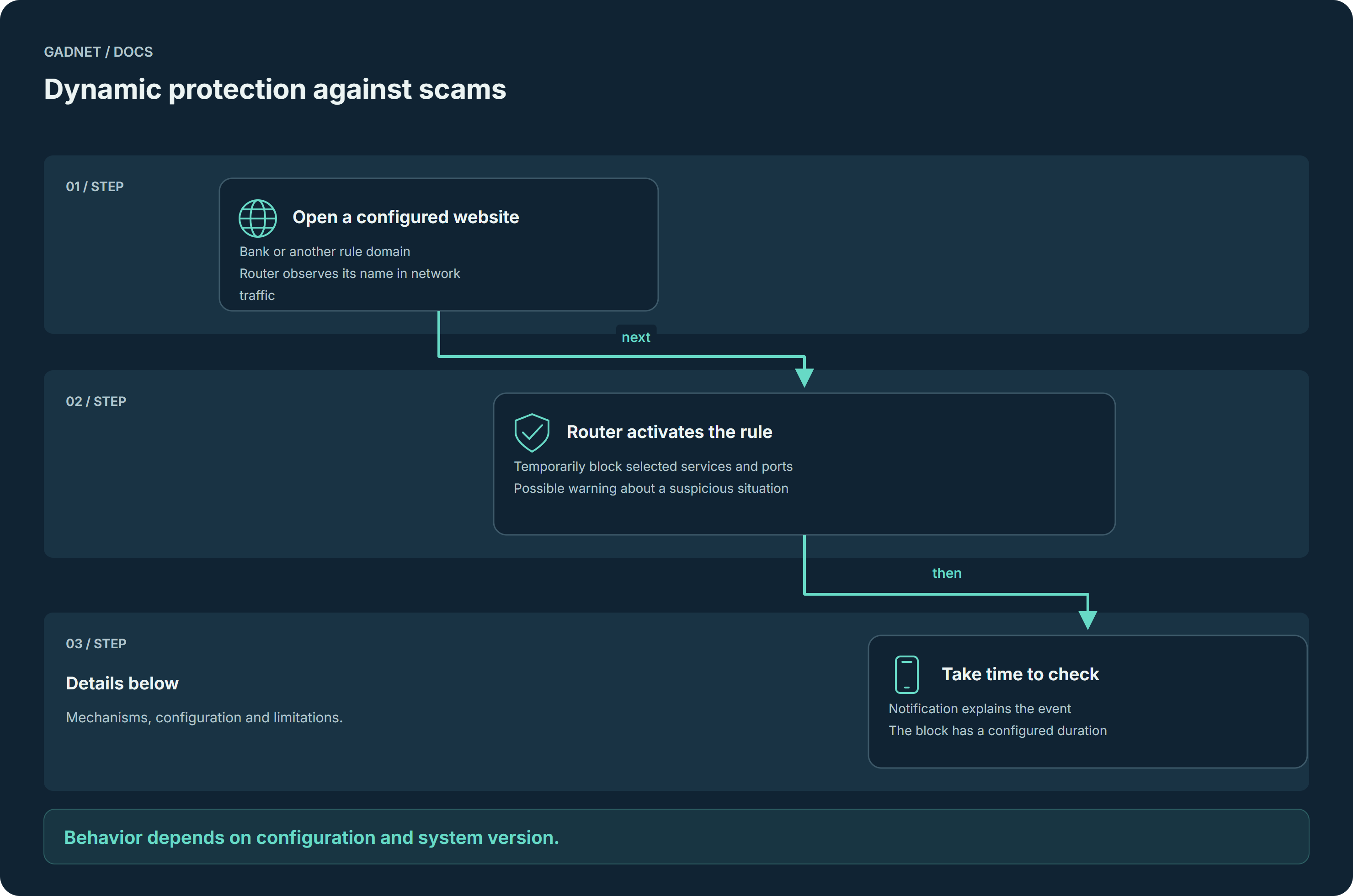
Dynamic protection against scams

Someone on a call urges you to open your bank, make a transfer or start remote desktop software. The router may notice a configured domain and temporarily cut configured services, as well as send a warning.

Dynamic protection against scams — process described below
On mobile, scroll the diagram sideways.Open PNG and zoom ↗
IN PRACTICE

A caller in a messaging app asks you to run AnyDesk and sign in to your bank. An enabled rule can restrict that device’s remote-access connections. It does not assess the caller’s words or the transfer itself.

What happens technically

  1. Match a domain

    An enabled protection rule compares the observed name with trigger_domain, including subdomains. The name can come from DNS or passive observation of visible SNI.

  2. Restrict the device’s connections

    blocked_domains and optional remote-desktop ports activate a block for the source device. block_duration_minutes defaults to 15 minutes, with a range of 1–1440. Blocking does not require a concurrent call. It expires unless the rule renews it based on continued traffic to the triggering domain.

  3. Correlate events and warn

    The router correlates a banking-domain visit with simultaneous traffic from the same device. For UDP_VOICE it checks conntrack for signs of an active call, such as traffic on ports used by WhatsApp or STUN/TURN. This identifies connection characteristics; it neither reads the call nor reliably identifies a specific messaging app. Administrators and affected devices receive a warning when this correlation is detected or a block was enforced. Configured remote-desktop blocking starts on a banking-domain match without requiring call detection.

Terms and mechanisms

DNS / SNI
The trigger is a domain match in DNS or visible TLS ClientHello SNI. An unavailable name can prevent this detection path.
Conntrack / UDP_VOICE
A heuristic looks for UDP connections resembling calls, including STUN/TURN or active high-port traffic. It reads no audio or messages and can produce false positives.
Block / notification
Configured domains and optional remote-desktop ports are blocked on a rule match, regardless of call detection. Voice correlation controls the warning; an enforced block also triggers a notification.

Scope and limitations

This uses rules and network signals, not conversation content analysis. It does not recognize a transfer’s purpose, payee or psychological pressure, and it does not stop a banking transaction. Calls and bank visits can be legitimate, so false alarms are possible. Traffic must traverse the router, and the relevant rule and DNS/SNI observation must work. ECH, VPNs, hidden names and unrecognized protocols limit visibility. Blocking depends on configured domains, addresses and ports; it does not automatically cover every messaging app.

Full Docs chapter →

These diagrams describe the local system and app implementation, reviewed on 9 October 2026. Availability depends on version, hardware and configuration. The relay chapter describes remote-access code and does not confirm deployment of a particular server.